Get started
Home overview
From Home, you can start a Minecraft project or return to something you already created.
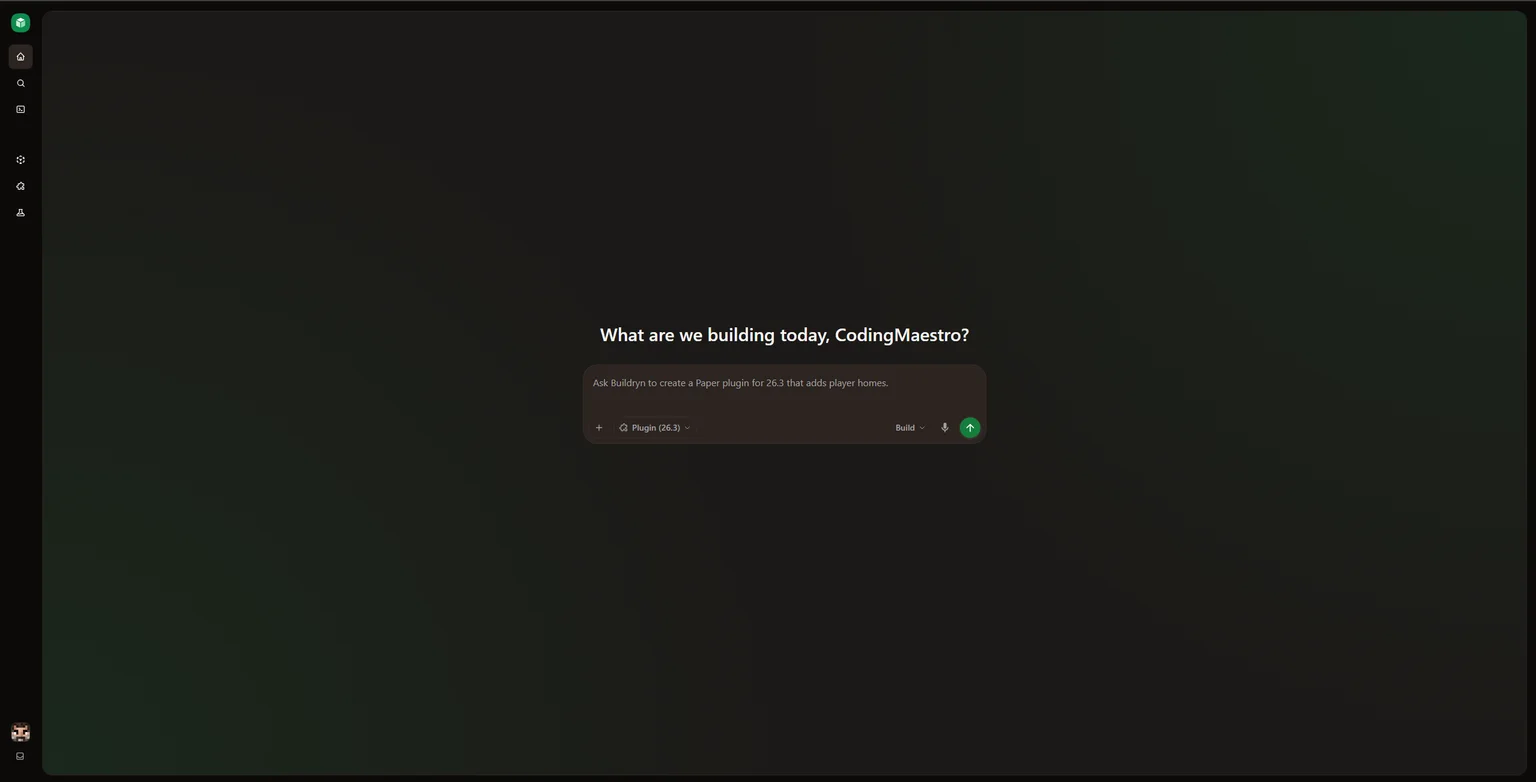
Start a project
Section titled “Start a project”Use the prompt box in the center of the screen:
- Type and version: choose Plugin (Paper), Mod (Fabric), or Data pack (Vanilla) as the project type, then select a Minecraft version.
- Mode: choose Plan to discuss the feature or Build to start implementing it.
- Prompt: describe what you want. Use + to attach reference images, then select the send arrow.
Buildryn opens the new project when you submit your request. Follow the quick start for a complete example, or read Prompting best practices for help describing a feature.
Find your work
Section titled “Find your work”Use the left sidebar to navigate:
| Control | What you can do |
|---|---|
| Home | Return to the prompt box to start another project. |
| Search | Search for a project or reopen one from Recent Projects. |
| Projects | Browse every project you can access, then search, filter, and sort the list. |
| Recent projects | Reopen one of your five most recently edited projects. The icon shows whether it is a plugin, mod, or data pack. Hover over a project and select … to open, pin, duplicate, or delete it, or to open its settings. Only project owners can pin, delete, or change settings. Select View all to open Projects. |
When the sidebar is collapsed, hover over an icon to see its label. Use the sidebar toggle to expand it.
Browse and organize projects
Section titled “Browse and organize projects”Open Projects from the sidebar to see your plugins, mods, and data packs in one list. Select a project card to open it.
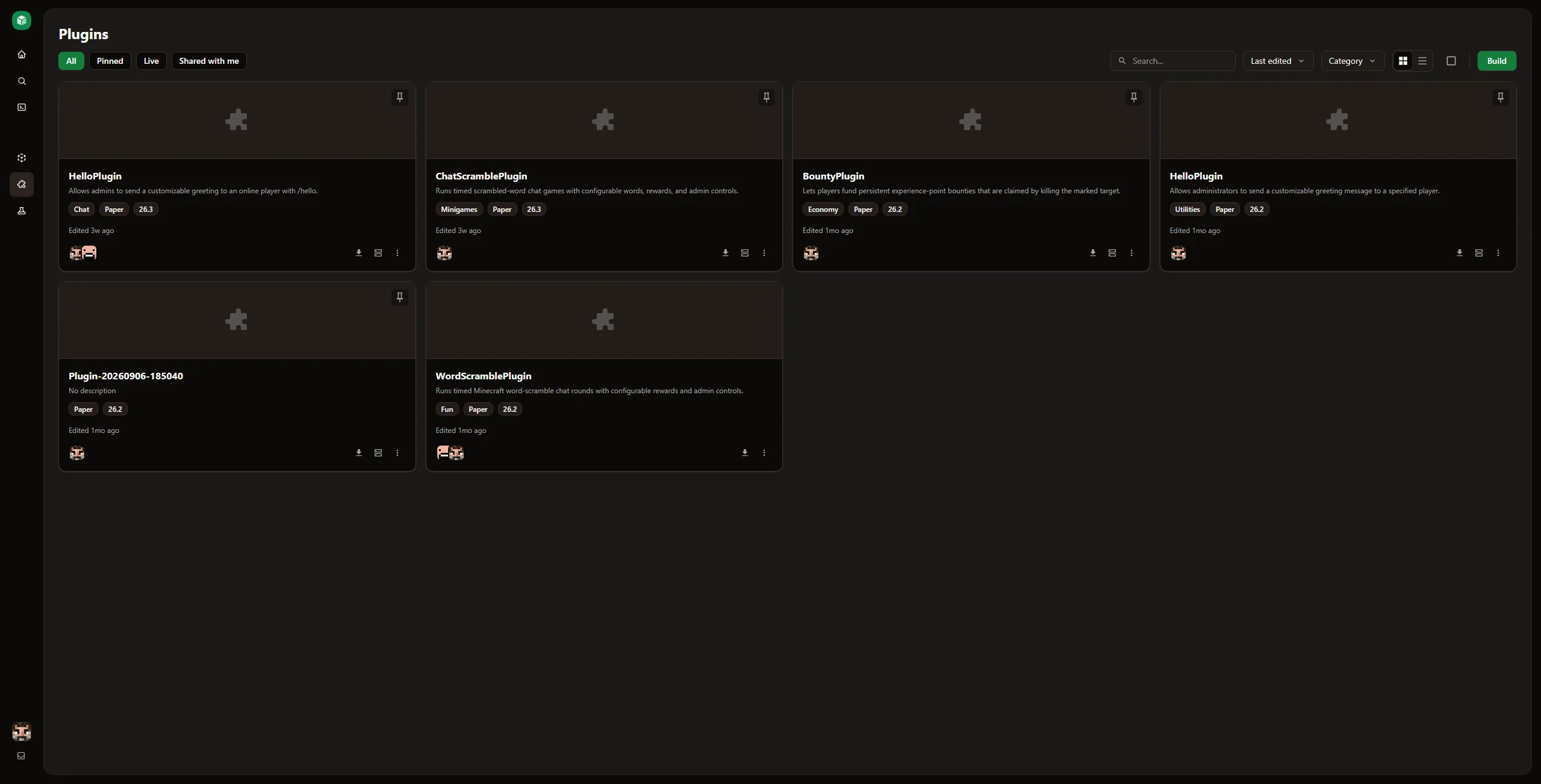
| Control | What you can do |
|---|---|
| All, Pinned, Live, Shared with me | Show all accessible projects, your pinned projects, projects with a running deployment, or projects shared with you. |
| Search | Find a project by name. |
| Type | Show only plugins, mods, or data packs. |
| Last edited | Sort by last edit, creation date, or name. |
| Category | Filter by category. |
| Grid and list icons | Change how projects appear. |
| Pin icon | Pin or unpin a project, then use Pinned to find it again. |
| New project | Return to Home to start a project. |
Each card shows the project name, description, type, category, platform, and Minecraft version. Use its three-dot menu to open or duplicate it. Owners can also open Settings or delete it.
For renaming, duplication, and deletion, see Project settings. If a shared project is missing, check your invitation or ask the owner to confirm your access.
Manage your account
Section titled “Manage your account”Select your profile picture at the bottom of the sidebar to open the account menu. From there, open Settings to manage your profile, security, notifications, and billing. You can also check your credit balance in the menu.
Use the notification icon near your profile to read updates and project invitations. See notifications and subscription plans for more detail.
Continue inside a project
Section titled “Continue inside a project”After opening a project, use its files, chat, builds, and deployments to continue your work. Read the Project overview to find those controls.